




Some Of Our World Class Brands


CHT SOLUTIONS - YOUR HOME THEATRE & HIFI EXPERTS
CHT Solutions is your one-stop shop for the highest quality home theatre and HiFi components. Whether you are creating your own custom home theatre and are in the market for a home theatre package, or are simply wanting to upgrade your speakers, you have come to the right place. We have been providing the best home theatre and HiFi products Australia-wide since 2009.
Custom Home Theatre Systems - Tailor Made For You
Everyone has their own unique vision for their home theatre. Maybe you have a large space and want to create something grand and cinema-esque, or you are simply wanting to upgrade the elements in your current living room to create a mini-home theatre for you and your family. Whatever your needs, our experienced team works closely with you to deliver on your vision for your home theatre, by supplying and installing the best quality home theatre products that will take your space to the next level.
Alongside our range of home theatre projectors, we have AV receivers, power amplifiers, 4K Blu Ray players, and luxe Manhattan home theatre seating. Additionally, we have home theatre packages that allow you to save on some of our best brands.
Professional Installation & Calibration
We don't only sell all the components required for your home theatre, we can handle the installation and calibration of your new setup. CHT Solutions work with a reliable and trustworthy team of contractors Australia-wide, which makes installing your new custom home theatre system completely hassle-free.
Home Theatre Design Service
Don't know where to start when it comes to designing your home theatre? No problem! That's where we can help. With a team that brings a wealth of collective experience in the home theatre and HiFi industry, we can design a home theatre system that perfectly aligns with your space, your requirements, and your budget.
The Highest Quality HiFi Sound Systems
A great sound system can really elevate your home theatre or music setup and at CHT Solutions, we know the value of high-quality speakers and sound systems. We stock an extensive range of various speaker types, including; bookshelf speakers, floorstanding speakers, centre speakers, surround speakers, in-wall and in-ceiling speakers, Dolby Atmos speakers, subwoofers, soundbars, and outdoor speakers.
Not sure which type of speaker is right for your preferences and setup? We would love to help! Contact us for obligation-free advice from one of our sound experts to find out which speakers we recommend for you.
Alongside our wide range of speakers, we have a collection of turntables, modern CD players, integrated amplifiers, streaming devices, and more. Shop our range of the best HiFi products online now.
Exceptional Customer Service
Providing excellent customer service is absolutely paramount for us. We pride ourselves on superior communication and going that extra mile to deliver products and systems that our customers are going to love using.
Whatever your budget, we will endeavor to find the best products that meet your unique requirements.
Your satisfaction and feedback are very important to us, so feel free to leave a product review or contact us if you have any feedback or suggestions for our team.
Your Trusted Custom Home Theatre Store. Shop Our Product Range Now!
You can shop our full collection of home theatre and HiFi products online via our website now. We offer free shipping and delivery Australia-wide on all of our products, with no minimum spend. For any queries or obligation-free advice, please give our friendly team a call at 1800 100 998.
Let customers speak for us
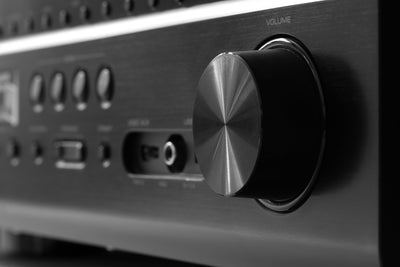
Really pleased with denon. I'm using it with Q Acoustic 3030i speakers. I was initially using Schiit Modi dac, but tried internal Dac in the PMA-600NE and I couldn't tell much difference at all. If I had one complaint it would be that there is no visual way of telling what volume is, so I just have to go by ear. Also wish that analog inputs were just labelled A1, A2 etc, instead of CD etc. But otherwise I'm happy, it plays really loud if needed. Clear sound. Highly recommended despite minor criticisms mentioned.
Also Highly recommend CHT Solutions. I'll be buying from them from now on. So quick to dispatch order. Also I had questions regarding subwoofer which I intend to purchase soon and they were very helpful

Purchased the DD Plus from CHT through Scott who was super easy to deal with.
This incredible sub was out of my price range until I came across CHT’s price.
It arrived and immediately out of the box looks incredible and feels rock solid.
I did the quick set up and set the crossover to where I thought I’d like it.
I thought I’d probably have to tweak it over time… nope.
Unbelievably it’s just settled in itself as each week passed and has made my system sound magical.
Every instrument now sounds incredibly full and three dimensional.
I was expecting great sound but this thing helps create magical sound.
Super impressed, worth every penny, my system is now perfect.

If your priorities are musical enjoyment over noise-cancelling ability, then the B&W PX7 S2 are the natural choice at this price point. These headphones are definitely a case of quality over quantity. Sound quality is typical of the deserved B&W reputation - warm, firm bottom end, precise mid-range, and crystal high end combine seamlessly as a result of experienced engineering and premium materials. These headphones exude quality as soon as you pick them up, as they weigh slightly more than the typical over-ear headphones, and this weight comes from the solid casing and the premium plastics. The solidity of the unit, while determining the quality of the sound produced, also means that these headphones do not collapse into a more portable case, which is the only slightly negative aspect of the PX7 S2. Sacrificing a bit of space for a superior listening experience is something we can all live with. No touch-sensor controls on the sides of the unit is a blessing in my humble opinion as I usually become annoyed when every brushing movement of earbuds or cheaper over-ear headphones means pausing or skipping tracks, or hanging up on a call by accident. This may be an inconvenience for those on the go who don't have the time to get their phone out of their pocket to use the functions on the touch screen, but these headphones aren't for teenagers listening to songs on YouTube on low definition settings. They are for discerning high resolution listeners who know how to enjoy the depth of high quality audio devices.
Oh, did I say these headphones are bloody fantastic? Pretty sure I did. Anyway grab yourself a pair and bung 'em on you noggin - you won't regret it!

Scott was unbelievably helpful with what we purchased (multiple Sonos products) and his advice is great. And to put cream on the cake - the prices are great savings - which helps us as we rebuild and furnish our home that we lost in the bushfires.
John G.

Scott of the CHT SOLUTIONS is the most friendliest manager I've met , he sold the Polk R200 to me was the lowest advertised price on market.
The speakers are amazing, the sound quality n value are the best in both world ,you get high power handling sparkle clear high vocal is natural n forward, it just spotted on for me , bass is the star but if you want more subwoofer is needed. I Owned the Polk rti A9 before , this is an amazing improvement over the rti range , My future upgrade will be the floor standing ones either the R700 or R600 for a full body sound.
All you needed is a 120w+ rms per channel power amplifier or receiver to get the most from them, ideally 200w rms power.
All in all, CHT solutions is a great store with excellent service, my only go to store Thank You so much Scott, love my R200 a lot, remember they do take time to break in , approximately 3days to one week .Thank You for everything Cheers.
Additional info , they never sounded fatiguing with high-resolution Highs top tweeter performance for it's price range !

I used to have my dad's ancient sealed box speakers from the 70s and I'm not keen on all the "futuristic" design styles of most modern speakers. So when I saw all the glowing reviews of the KLH Model Five as having modern technology in a similar wooden enclosure, I had to check them out.
Scott at CHT Solutions was very happy to let me demo them at his showroom with my amp and DAC and I had a blast playing a big bunch of my CDs through them. I put a deposit on them that day. Scott was an absolute pleasure to deal with.
I won't go over my sonic impressions. They sound fantastic. Scott has posted a bunch of YouTube reviews which go over all that much better than I could.
I will, however, provide one caveat. The reviewers above touch on it, but I think it should be emphasized. These speakers love power. I have been using a 100W amp with them for the past few months. While they sound fine with that amp, I have also demoed some more powerful amps and that's when they really come alive. Think 200-300W minimum.
So when you call Scott for a demo, make sure you also ask him to show you some of his bigger amps at the same time. You'll be so happy you did.

The projector itself is great, no complaints at all so far (only in use for 10 hours so far), set up is idiot proof, picture quality is great and i'm coming from a Optoma UHD35+. Lots of reviews on youtube that compare it to others and all of them praise this the LS12000.
But what my day was when dealing with CHT Solutions, this was a very expensive purchance for us and CHT (dealing with Scott) answered all my stupid questions, (live chat and even video chat) a bunch of times over a few days, knew more about the projector then the reviews, never came across like a pushy salesman and wanted us to be very comfortable with our purchance. Even though we are not locals and Im from QLD, I will be calling CHT first for advice on my other home theater needs first. This seems like a very positive review and not much about the product itself but I've received very poor service from others in the past so I think it should be called out when exceptional service is also received :)

The Sales team was great, it was delivered on time and fast. The technical support were very helpful and answered all our questions. Their products was so amazing, I will be coming back to buy again their product from https://www.customht.com.au.

Excellent customer service. I would recommend anyone without giving a second thought. Thanks to Scott who helped me throughout the purchasing process.

I bought this SVS ctr speaker based on reviews and frequency testing videos on YouTube. Basically its 3-way or no-way. I replaced my 2 way (still expensive) center speaker, and the difference is night and day. As I have really good front speakers, this center speaker now seamlessly balances the front sound stage evenly from left to right (or right to left). Very happy with this product, it has improved the whole movie experience significantly.

The SVS SB 1000 has enhanced the bass roll off from my Dali Spector speakers. The app that comes with the sub enables you to fine adjust the bass you want. While I have got the bass/ floor speakers roll off pretty good for my ears, I’m sure give time this can be improved. I’m very happy with this addition to my system which is now 5.2.2.

For years I have been having power issues such as under and over voltage.
I play guitar and use valve amps.
Valve amps are really sensitive to voltage changes and a good amp can sound bad when the voltage isn't right.
Another factor is "Dirty Power" which can create a weird unpleasant sound from a guitar amp.
The Thor PS10 and smartboard seems to have fixed all my issues. I regard it as good value. There are other devices made for the US market which are about the same price but aren't nearly as good as the Thor PS10. There are other units made by Kikusui which are excellent but really expensive and have features that for general use in Australia are unnecessary such as a DC, DC + AC output and the ability to run anywhere in the world. All but the smallest unit of the Kikusui line have to be hard-wired in by an electrician. I am really pleased with the Thor PS10 as it has met my expectations.

This unit is fantastic I’m very happy with the purchase it’s the missing piece with my Hi Fi set up. All credit to CHT for the prompt seamless delivery. I’m definitely thinking about buying another unit as a backup. Don’t hesitate in buying one of these units & dealing with CHT Solutions 👍

Great piece of audio equipment very easy to setup using supplied microphone. Super fast overnight delivery by CHT solutions. Would definitely buy from CHT again. Exceptional service.

Really pleased with this purchase. Has brought new life back to my older Amp, speakers and CD player. Streams off my NAS, and from a multitude of streaming sites. It also has hdmi to bring everything that connects to the TV, like gaming consoles and let’s you put it all through AptX HD to compatible headphones. Great!

Trending Products


New Products


Pre-Owned Products
View all


Home Theatre Articles and News
View all